To check if a proxy is working, test four things in this order: that it connects and the exit IP is different from your own, that the exit IP is in the country or city you paid for, that it responds fast enough to use, and that the address isn't listed on a public blocklist. A proxy can pass the first test and fail the other three. Once it passes, check it once more inside the browser, where WebRTC and the timezone can still give your real location away.
Step 1: does it connect, and with which IP?
The quickest test needs nothing but curl in a terminal. Ask an IP lookup service for your address, once through the proxy:
curl -x "http://USERNAME:PASSWORD@HOST:PORT" https://ipinfo.io/json
curl -x "socks5h://USERNAME:PASSWORD@HOST:PORT" https://ipinfo.io/json
Use the first line for an HTTP proxy and the second for SOCKS5. The h in socks5h tells curl to let the proxy look up the site's name, which is how a browser uses SOCKS5 too. The curl manual lists the other proxy options.
If it works, you get back a short block of JSON describing the proxy's exit address, not yours. If it fails, the error usually says why: a timeout means nothing answered, "connection refused" means the port is wrong or closed, and a 407 response means the username or password was rejected.
Step 2: is the IP where it should be?
Read the lookup result rather than just noticing that it changed:
- ip: the address sites will see.
- country, region and city: where IP databases place that address. Different databases can disagree by a city or two; a different country is a real problem.
- org: the network that owns the address. A hosting company's name means a datacenter address, a consumer internet provider means residential or ISP. Residential vs datacenter proxies explains why that matters.
- timezone: what a profile using this proxy should report as its timezone.
Step 3: is it fast enough?
Latency is the time for a request to go out and come back through the proxy. Run the same request a few times, because one slow answer may be a fluke, and test from the computer the profiles will actually run on. SoftGlaze's own speed ratings are a reasonable guide: under 500 ms is fast, under 1,500 ms is good, under 3,000 ms is OK, and anything slower is slow. Pages through a slow proxy load sluggishly and are more likely to time out.
Step 4: is the address on a blocklist?
DNS blocklists, also called DNSBLs, are public lists of addresses seen sending spam or abuse. They are run by groups such as Spamhaus, SpamCop and Barracuda. You check an address by reversing its four numbers and looking that name up under the list's zone: a reply in the 127.0.0.x range means it is listed, no answer means it isn't.
A listing is a warning, not a verdict. These lists are mainly used for email, and plenty of sites never consult them. But an address on one usually has a history, and that history can follow you into a sign-up form or a payment check.
How SoftGlaze Browser checks a proxy
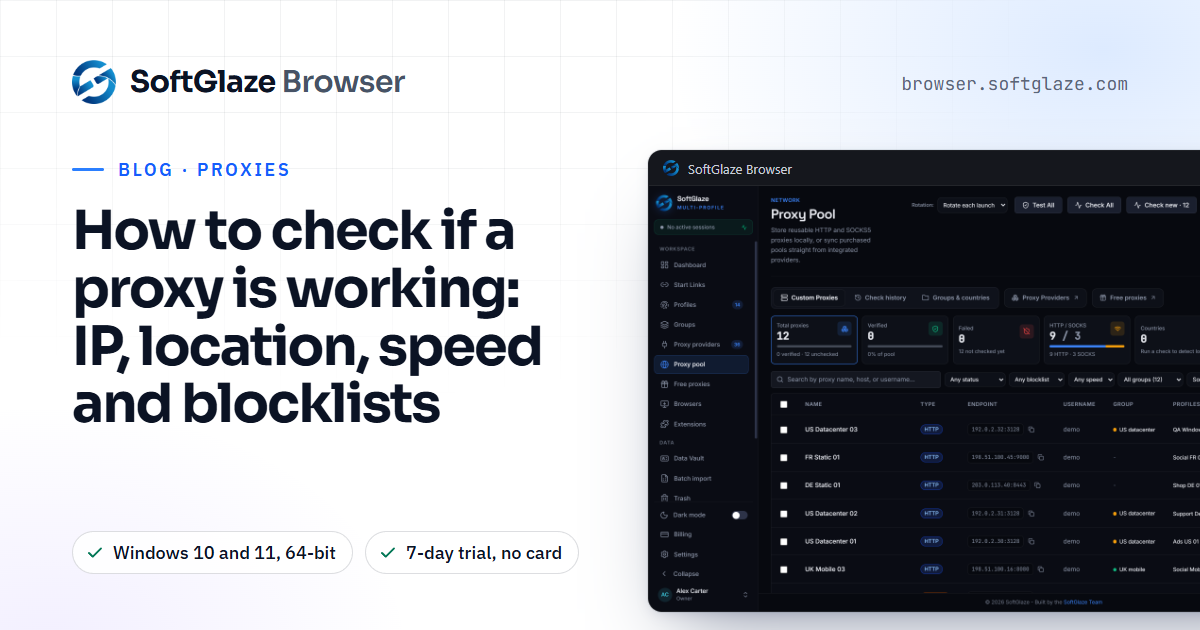
In SoftGlaze, Check on a proxy's row, or Test All for the whole pool, runs these steps for you. Each check:
- Connects through the proxy to ipinfo.io and reads the exit IP and its location.
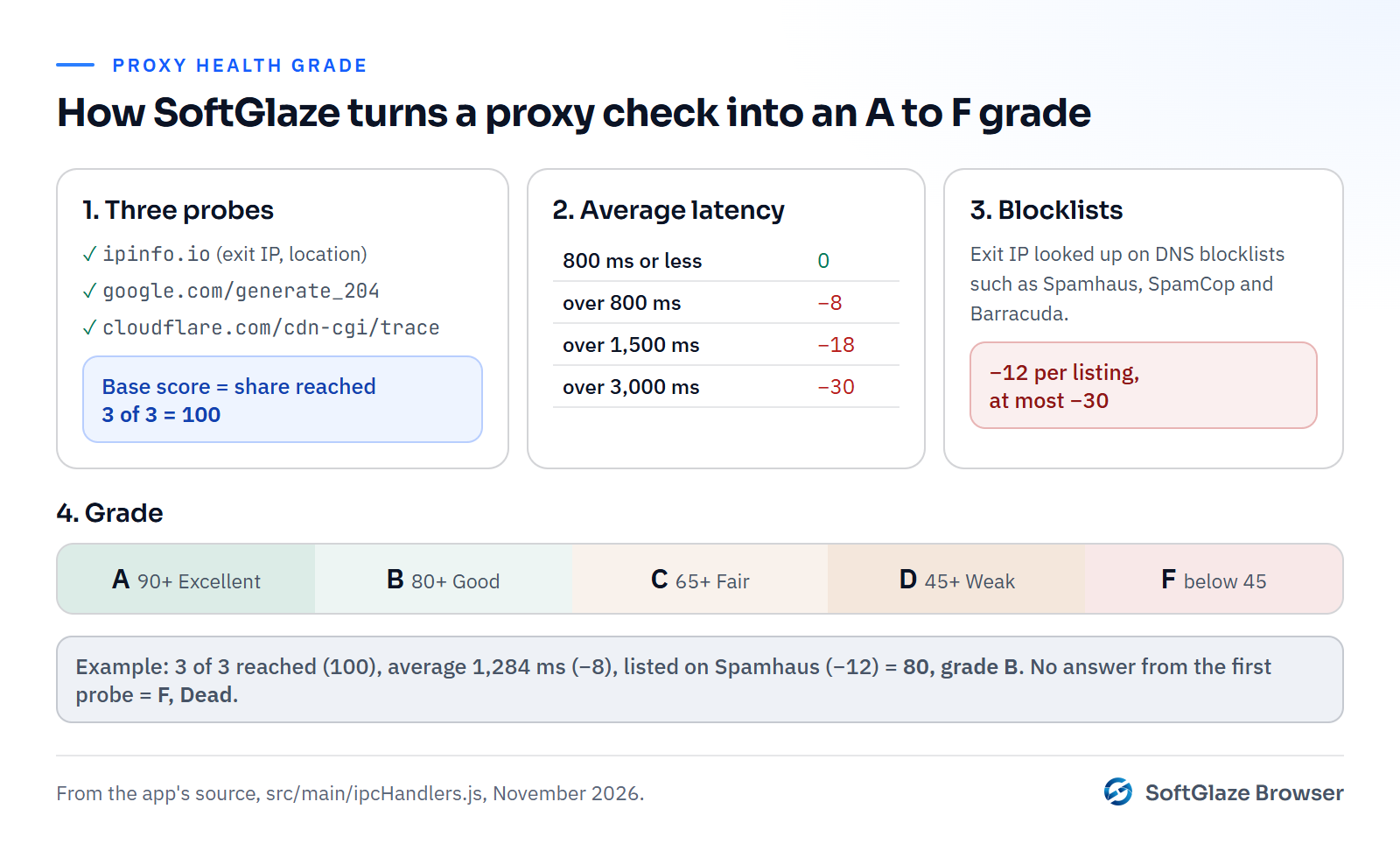
- Probes two more endpoints through it, Google's generate_204 page and Cloudflare's trace page, timing each one.
- Looks the exit address up on three DNS blocklists: Spamhaus, SpamCop and Barracuda. Versions up to 1.0.21 also asked SORBS, which was shut down in June 2024; 1.0.22 dropped it.
- Turns the results into a score and a grade from A to F.

The score starts from the share of the three endpoints the proxy reached. It loses 8 points if the average response is over 800 ms, 18 if it is over 1,500 ms and 30 if it is over 3,000 ms, and 12 points for each blocklist that lists it, up to 30. A score of 90 or more is an A, 80 a B, 65 a C and 45 a D; below that is an F. A proxy that can't reach the lookup service at all is graded F, Dead.
The pool's filters use the same measurements. "Fast" means 2 seconds or less, and you can filter for proxies flagged on a blocklist. A proxy that fails keeps its row, so you can test it again later instead of losing it.
Keep checking after day one
Proxies change. Residential addresses go offline, a datacenter range gets listed, a provider has a bad night. In SoftGlaze, Auto-check every N minutes re-tests the pool on a schedule while the app is open, and Health history charts each proxy's latency over time, including the ones that were verified before and failed later. Failover to healthy then skips proxies whose last check failed when a profile launches, which sticky vs rotating proxies explains.
The checks that need a browser
A proxy that passes all four steps can still be undone by the browser using it:
- WebRTC can reveal your real IP to a page even though the page loads through the proxy. See WebRTC leaks.
- Timezone and language that don't match the exit IP contradict the address. SoftGlaze sets both from the proxy's location at launch unless you turn geo auto-match off.
The proxy docs list every result a check returns. Run Leak Check on the profile after you assign the proxy. It tests the proxy and the profile's settings together and scores them out of 100. The proxy pool page shows where all of this lives in the app.
Questions people ask
Why does a proxy pass one checker and fail another?
They test different things from different places. One may only open a connection, another may load a page through it, and a busy proxy can simply time out once. Test more than once before you give up on it.
What does ETIMEDOUT mean?
Nothing answered in time. The proxy may be offline, the host or port may be wrong, or your network may block that port.
Should I delete a blocklisted proxy?
Not automatically. Note which list it is on and how the sites you use react. For anything involving sign-ups or payments, a clean address is the safer choice.
Does SoftGlaze include proxies?
No. You add your own, by pasting a list or by connecting one of the 36 supported provider accounts, and the app checks them.
Run Test All on a sample pool in the interactive demo and see the grades. No download.