The safest way to share an account with your team is not to share the login at all: give each person their own access through the platform's built-in user management. When a platform doesn't have that, use a team password manager that can share a login without revealing it, or share a signed-in browser profile that a colleague can use but can't read the password, the 2FA secret or the proxy login from. Whatever you choose, avoid the usual shortcut of pasting a password and a 2FA code into a chat. Anyone who saw it keeps it.
Why "just send the password" goes wrong
A shared password has three problems that get worse with every person who knows it:
- You can't take it back. When someone leaves, the only way to remove their access is to change the password and tell everyone else the new one.
- You can't tell who did what. Every action looks like the same person, so the account's own history is useless for finding out what happened.
- 2FA gets weakened. To let several people sign in, teams screenshot the QR code or share the setup key, and then anyone with that key can generate codes forever.
Option 1: use the platform's own user access
Most business platforms let an owner invite other people with their own login and a chosen level of access. Google Ads is a good example: when you invite someone you choose an access level, and its help page describes levels from Email-only and Read-only up to Standard and Admin, plus a separate Billing level (About access levels in your Google Ads account). Ad platforms, marketplaces, analytics tools and most software-as-a-service products have something similar.
This is the best option whenever it exists. Each person has their own login and 2FA, the platform's own log shows who did what, and removing someone takes one click. Many platforms also prefer it in their terms, which often say an account is for one person.
Option 2: a team password manager
Team password managers store a login in a shared vault and fill it in for a colleague. Depending on the product and its settings, the colleague can use the login without seeing the password, and many can store the 2FA code generator too.
It works well for tools without user management. Its limits: the colleague still signs in as the account owner, the platform still sees one user, and a password that has been filled into a page can sometimes be read back out of it.
Option 3: share the signed-in session, not the secrets
The third option shares a browser profile that is already signed in. A profile here means a separate browser with its own cookies, as Chrome profiles vs Firefox containers vs an antidetect browser explains. The colleague opens it and works; the cookies keep them signed in; the password, the 2FA secret and the proxy login stay hidden. This is what SoftGlaze Browser's roles are built for, and it fits agencies and teams running client accounts. See browser profiles for agencies for that workflow.

| Platform's own user access | Team password manager | Shared browser profile (SoftGlaze) | |
|---|---|---|---|
| Each person has their own login | Yes | No | No, but each has their own SoftGlaze member account |
| Platform's log shows who did what | Yes | No | No, but SoftGlaze's activity log does |
| Colleague can see the password | No | Depends on settings | No, below Manager |
| Removing someone | One click on the platform | Remove them, then change the password | Suspend the member |
| Works when the platform has no user management | No | Yes | Yes |
How sharing works in SoftGlaze
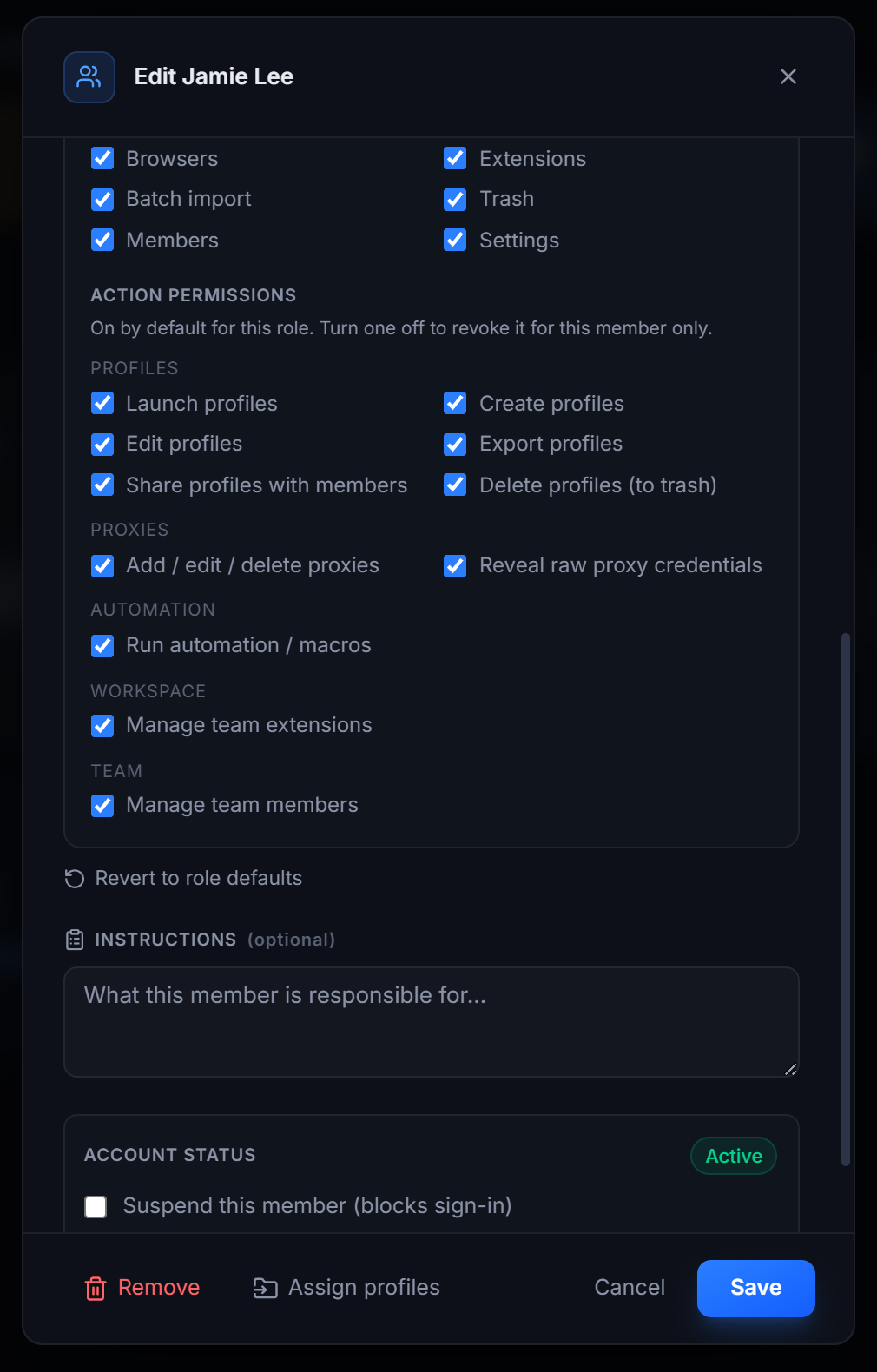
A workspace has four roles: Owner, Admin, Manager and Operator. Managers and above can share selected profiles with a member, either to use (launch only) or to use and edit, and revoke that later. Deleting stays with admins.
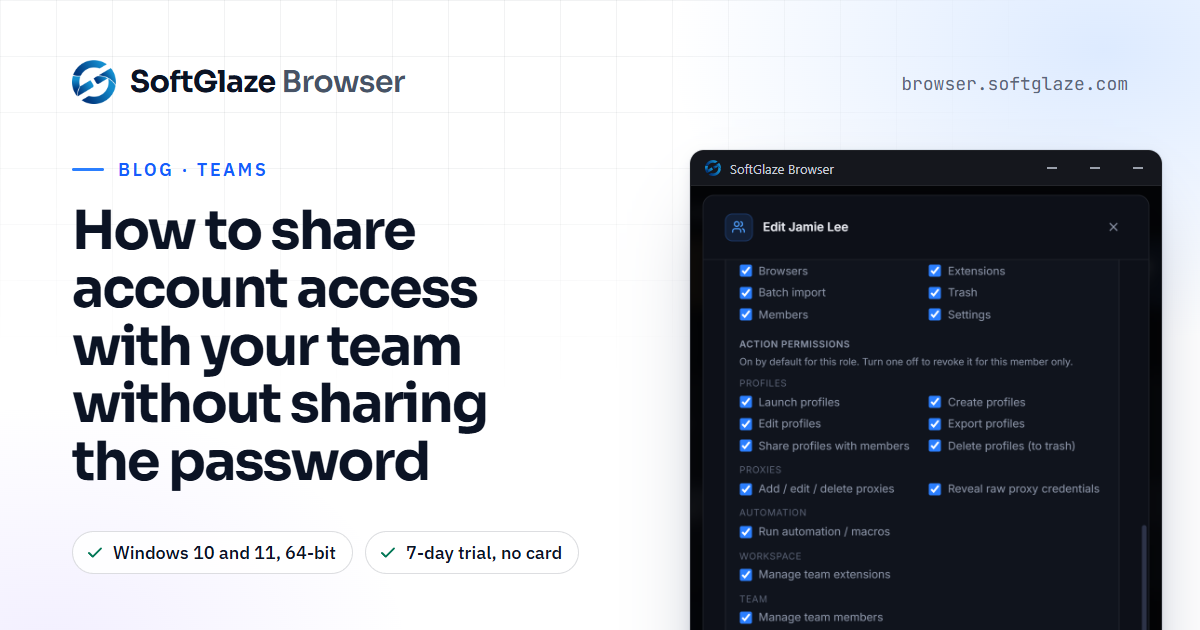
Below Manager, the secrets arrive masked as dots: the proxy username and password, the account password saved in the profile, the cookie export and the live 2FA code. The profile still launches with all of them in place, so an Operator can do the work without ever seeing the credentials behind it. Owners and admins can also turn off individual actions for one member, such as revealing raw proxy credentials, without changing their role.
A few more details matter day to day:
- The 2FA secret never reaches the screen. The seed is stored with the profile and only masked dots are sent to the interface, owners included. The app generates the standard six-digit code that changes every 30 seconds (RFC 6238), and only Managers and above can see it.
- A running profile is locked to whoever opened it, so two people can't drive the same account at once by accident.
- The activity log records launches, edits, assignments, permission changes and sign-ins. Every plan can view it; exporting it as CSV or JSON is part of Enterprise and the trial.

The limits, plainly
Two things are worth knowing before you plan a team around this.
The team lives on one computer. Members are stored in the workspace database on the computer where SoftGlaze is installed, and each person signs in there with their own password. Several people can work from one installation, but there is no hosted team server, so colleagues on their own laptops are not sharing a workspace. Cloud sync, off by default, only works with a server you run yourself and carries profiles, not members.
Masking is not encryption. Until you turn on database encryption, which is off by default, the saved credentials are readable by anyone who can open the database file on that computer. Turn it on if the computer is shared or could be lost.
The team access page and the teams docs list every role, limit and permission.
When someone leaves
- Suspend their member account. That blocks sign-in without deleting anything.
- Remove them when you're ready, and choose whether their data is reassigned to you, to another member, or deleted. Deleted profiles go to Trash and can be restored; their proxies are deleted.
- If they ever saw a password, change it on the platform.
- If they ever had a 2FA secret or a QR code, set up 2FA again on the platform so the old secret stops working.
- Export the activity log if you need a record (Enterprise and the trial).
Questions people ask
Is sharing an account login against a platform's terms?
Often, yes. Many services say an account is for one person and offer multi-user access instead. Check the terms, and use the platform's own user management when it exists.
Can an Operator export a profile's cookies?
No. Raw cookie exports need Manager or above. An Operator can see that cookies exist, but not their values.
Can a Manager see the 2FA secret?
No one sees the secret in the app. Managers and above can see the current six-digit code; Operators can't.
How many people can share a workspace?
3 members on the trial and on Pro, 25 on Enterprise, with the owner counting as one, as of November 2026.
See what an Operator sees in about thirty seconds, in the interactive demo with sample data.