A WebRTC leak is when a website learns your real IP address through the browser's WebRTC feature, even though the page itself is loading through a proxy or VPN. It happens because WebRTC looks for network routes on its own, mostly over UDP, and that traffic doesn't always go through the proxy. The fix is to make the browser either send WebRTC through the proxy or not use direct UDP at all, and then to check the result on a WebRTC leak test page.
What WebRTC is, and why it can see your address
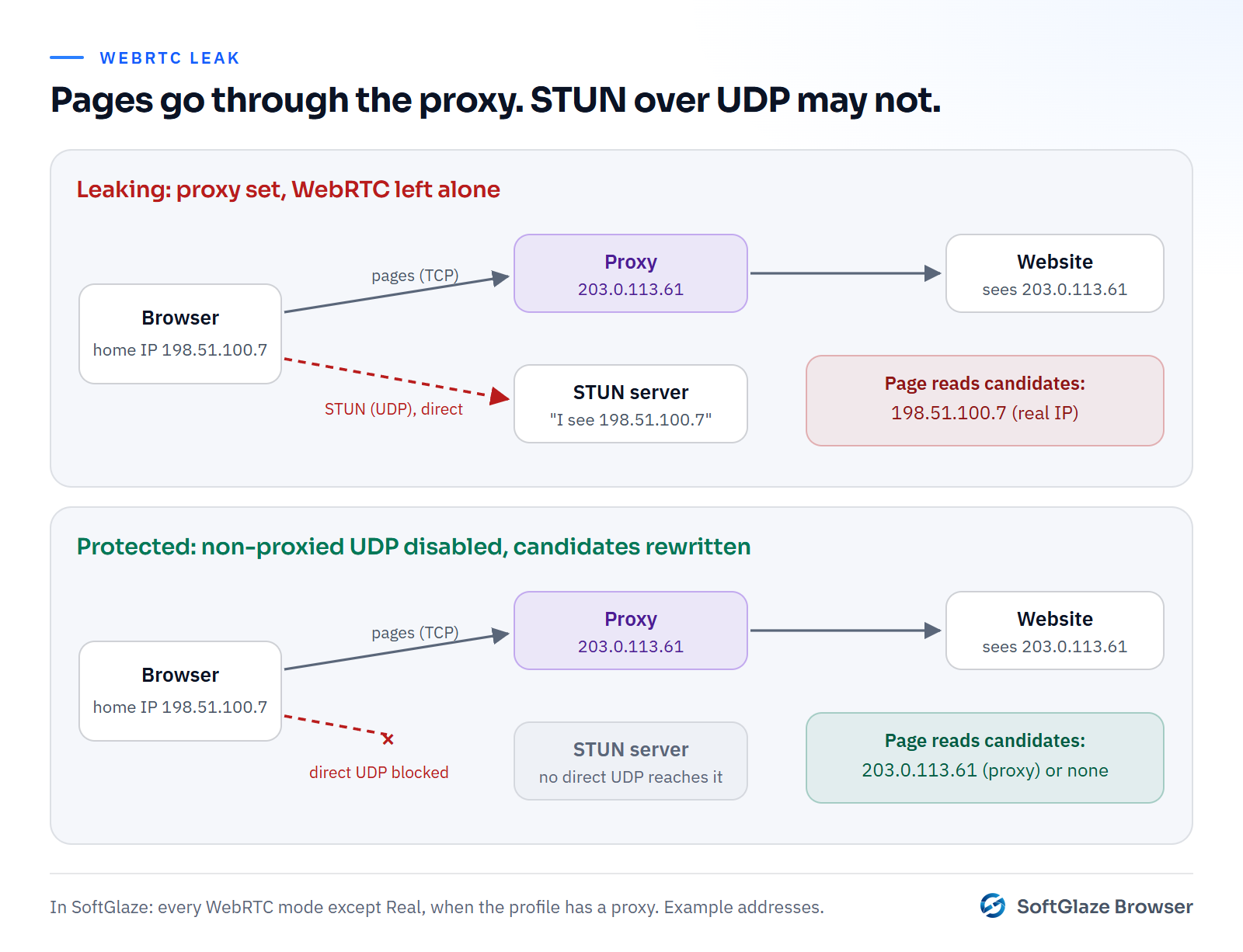
WebRTC is the part of the browser that makes video calls, voice calls and direct file transfers work without a plugin. To connect two people, it has to find a network path between them, so it gathers a list of possible addresses for your computer, called candidates. One common way is to ask a public STUN server "what address do you see me coming from?".
Those candidates are not hidden from the page. As RFC 8828, the IETF's document on WebRTC IP address handling, puts it: "These addresses are provided to the web application". It also names the proxy problem directly: when direct internet access is allowed, "WebRTC's STUN checks will bypass the proxy and reveal the public IP address of the client."
Why a proxy doesn't cover it by default
Most proxies carry TCP connections, which is what web pages use. STUN normally uses UDP. Chrome's own documentation on proxy support is explicit that its SOCKS5 support "is only used to proxy TCP-based URL requests. It cannot be used to relay UDP traffic" (Chromium proxy docs). An HTTP proxy can't carry UDP either.
So with an ordinary proxy setting, the page loads from the proxy's address while WebRTC quietly asks a STUN server over your normal connection, and the answer contains your real public IP.
Local addresses are less of a worry than they used to be. Modern browsers replace your private network address in candidates with a random name ending in .local, a technique described in the IETF's mDNS ICE candidates draft. The public address is the one to check.
How to test for a WebRTC leak
It takes about two minutes:
- Open the browser or profile you want to check, with its proxy or VPN switched on.
- Go to the BrowserLeaks WebRTC test.
- Note the IP address the page says you are using. It should be the proxy's.
- Look at the WebRTC section. Every public IP listed there should be the proxy's address, or the list should have no public address at all.
- If your own home or office IP appears, you have a leak.
Repeat the test after any change to the browser, the proxy or an extension. Our guide to testing your browser fingerprint covers the other values worth checking in the same session.
Ways to stop it
There are four common approaches, from most to least compatible:
- Force WebRTC through the proxy, or block non-proxied UDP. Chrome has a policy for this, WebRtcIPHandling. Its strictest value, disable_non_proxied_udp, means WebRTC "uses either UDP SOCKS proxying or will fallback to TCP proxying", in the words of the policy definition. Calls may get slower, but nothing goes around the proxy.
- Rewrite or drop the candidates a page can read. The page only ever sees the proxy's address.
- Turn WebRTC off. Simple, but video calls, meetings and some uploads stop working, and a browser with no WebRTC at all is unusual.
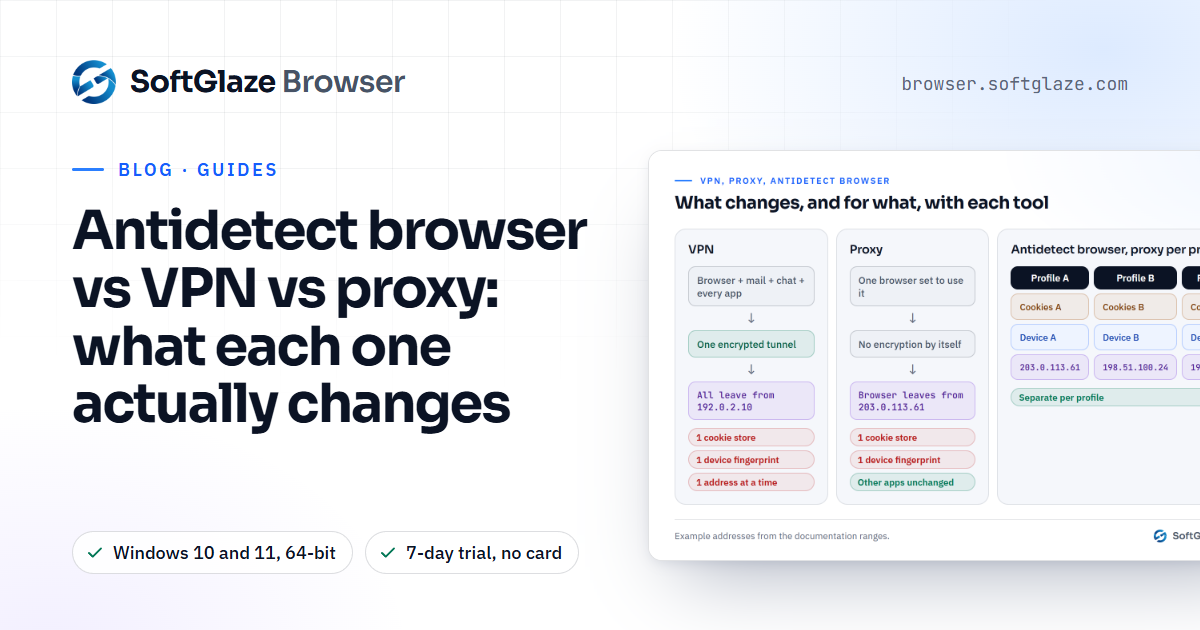
- Use a VPN for the whole device. If every packet, UDP included, goes through the VPN, STUN sees the VPN's address. This changes the IP for everything on the computer, not per profile. See antidetect browser vs VPN vs proxy for when that is the right tool.
What the WebRTC setting in a SoftGlaze profile does
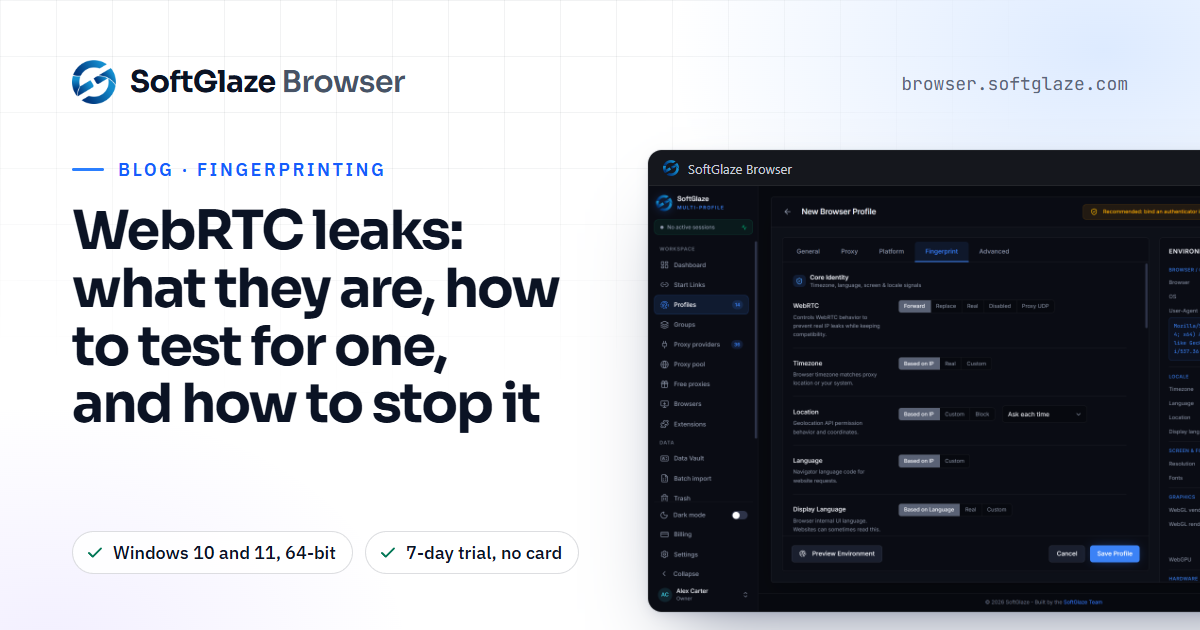
Every Chromium profile has a WebRTC setting in the Core Identity group of the Fingerprint tab, with five options: Forward, Replace, Real, Disabled and Proxy UDP. Forward is the default.
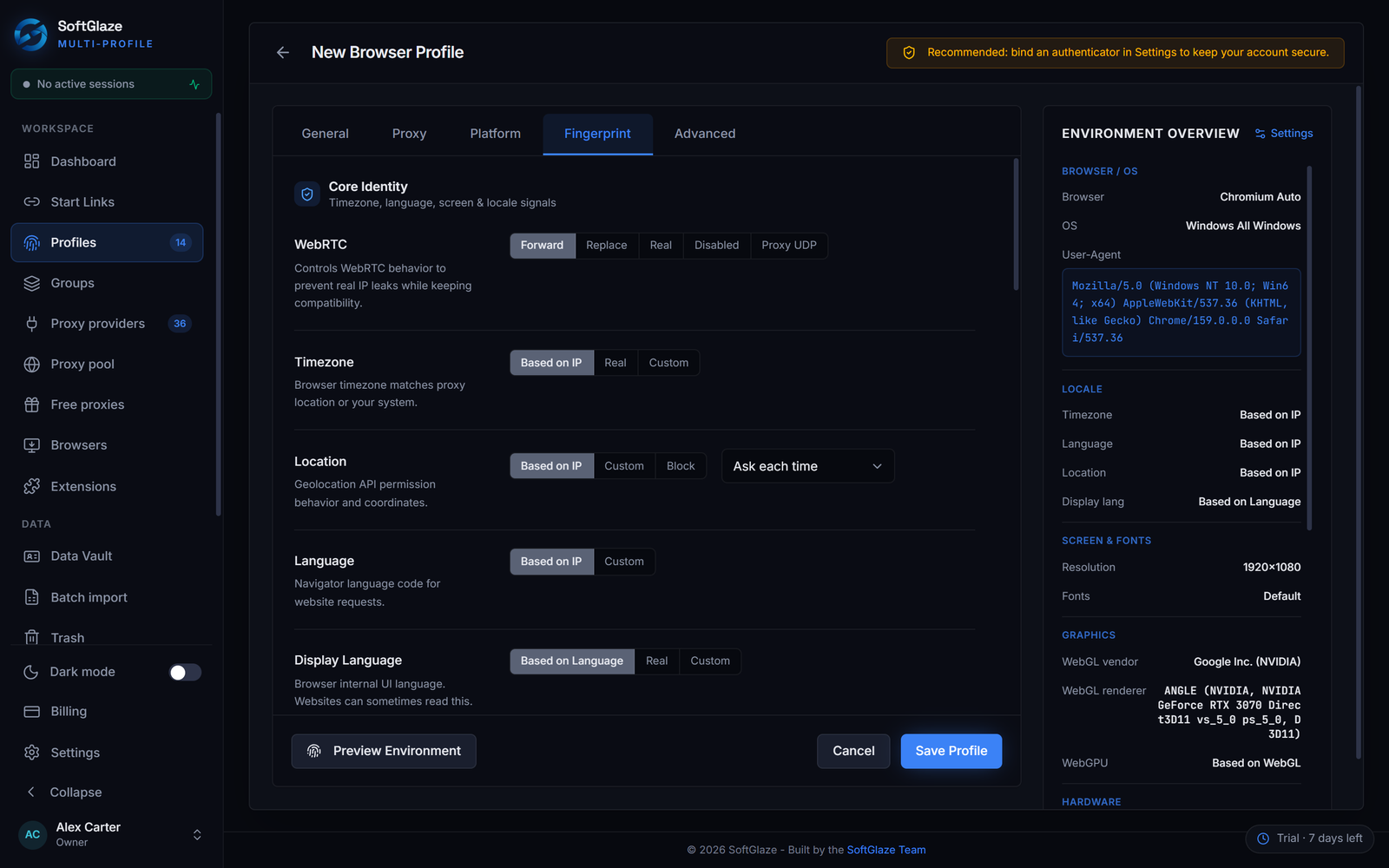
When the profile has a proxy, this is what each option does in the current code:
- Forward, Replace and Proxy UDP all switch on the same two protections. The browser launches with Chrome's disable_non_proxied_udp policy, so WebRTC can't use direct UDP. And any public address in a candidate the page reads is rewritten to the proxy's exit IP, which the app looked up through the proxy at launch. If that exit IP isn't known, public candidates are dropped instead.
- Disabled removes WebRTC from the page entirely. Use it only if you don't need calls in that profile.
- Real leaves WebRTC untouched, so your real IP can appear. Leak Check fails a proxied profile set to Real for exactly this reason.
Two more defaults help. HTTP/3 is disabled for proxied profiles, because it runs over UDP and could otherwise go around the proxy. And geo auto-match, on by default, sets the profile's WebRTC address, timezone and language from the proxy's location at launch. Firefox profiles launch real Firefox with WebRTC off.
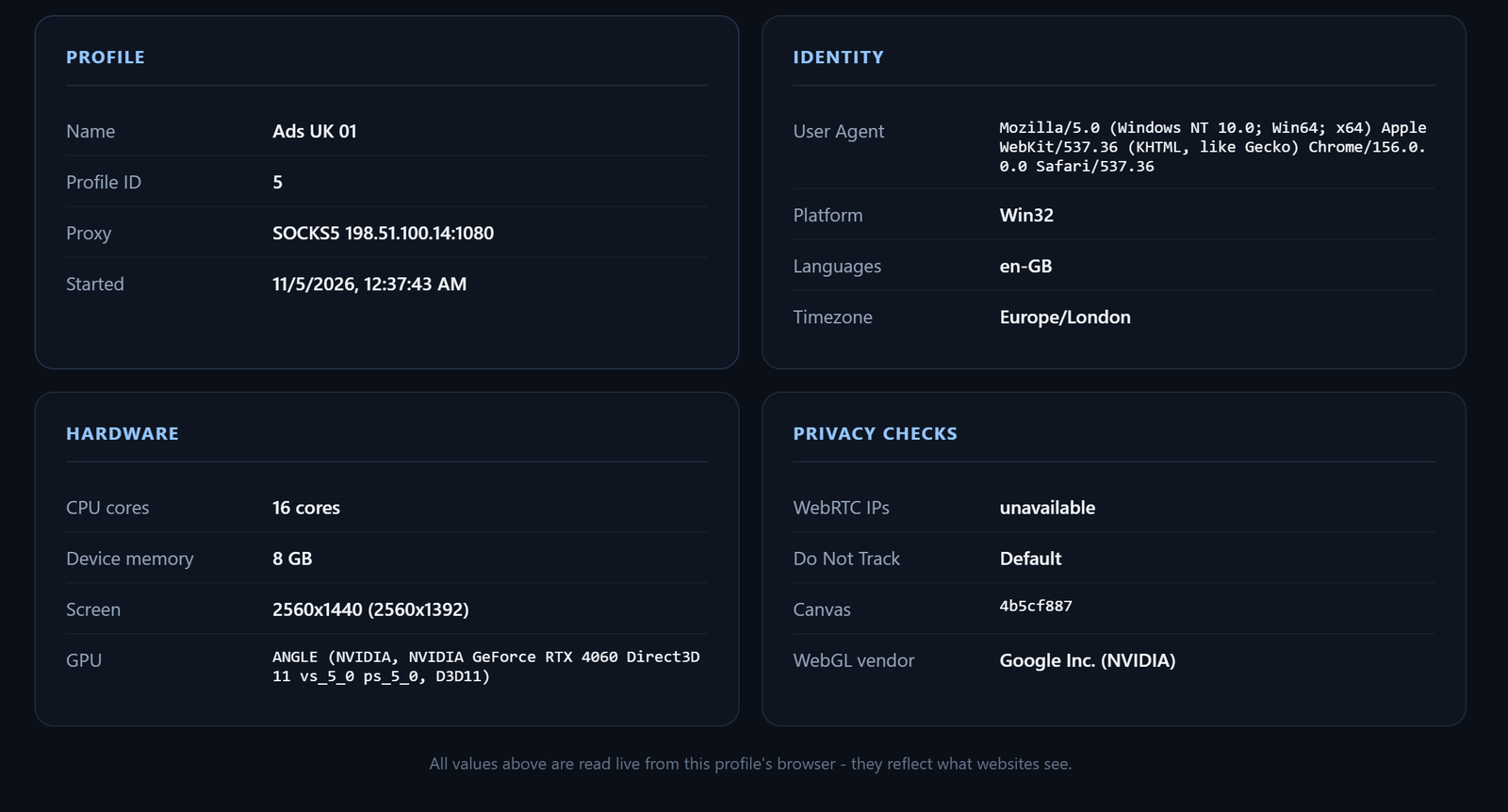
To check a profile, run Leak Check from its row: the configuration analysis reports the WebRTC mode, and the Live Test reads the real WebRTC values from the running browser. The fingerprint management page and the proxy docs cover the rest of what happens at launch.
Other leaks to check at the same time
WebRTC is the best-known leak, not the only one. While the test page is open, check these too:
- DNS. Every site name has to be looked up somewhere. With an HTTP or SOCKS5 proxy, Chrome lets the proxy do it. With SOCKS4, Chrome looks names up on your own computer, which tells your internet provider every site you visit. SoftGlaze won't open a Chromium profile with a SOCKS4 proxy for that reason; SOCKS5 vs HTTP proxy explains the difference.
- Timezone and language. They don't reveal your IP, but a clock set to your own city on a proxy in another country contradicts the address. Leave both on Based on IP for proxied profiles.
- Your local network. Pages can try to reach devices on your home or office network. In SoftGlaze, pages in Chromium profiles can't reach localhost or LAN addresses unless you switch on Local network access in Settings. It is off by default.
Questions people ask
Does a VPN prevent WebRTC leaks?
Usually, if the VPN carries all of the computer's traffic including UDP. Split tunnelling, or a computer with more than one network connection, can still expose an address, which RFC 8828 calls out for multihomed clients. Test with the VPN on to be sure.
Is my local IP leaking a problem?
Much less than it was. Modern browsers show a random .local name instead of your private address. The address that matters is your public IP.
Will blocking non-proxied UDP break video calls?
Calls can still connect over TCP through the proxy, usually through the call service's relay server. RFC 8828 notes that TCP reduces media quality, so expect them to be slower. Turning WebRTC off completely does break them.
Why does SoftGlaze keep WebRTC on instead of removing it?
A browser without WebRTC is unusual, and removing it is easier to notice than a normal WebRTC that only ever shows the proxy's address. Disabled is there if you prefer it.
Create a profile in the interactive demo and see its Fingerprint tab. Sample data, no download.