A sticky proxy keeps the same exit IP address for a period of time, called a session. A rotating proxy gives you a different address on a schedule: for every request, every few minutes, or, in a multi-profile browser, every time a profile launches. For a browser profile that stays signed in to an account, a stable address is almost always the better choice. Rotation earns its place when you are not signed in and want to see pages from many addresses.
The terms, without the marketing
Providers use these words loosely, so it helps to pin them down:
- Static: one fixed address that is yours until you stop paying for it. Datacenter and ISP proxies are usually static.
- Sticky session: one address from a large pool, held for a limited time. You keep it by reusing a session ID in your proxy login.
- Rotating per request: a new address for every connection. Common for gateway-style residential products.
- Rotating per launch: the profile gets the next proxy from a pool each time it opens, and keeps that one until it closes. This is what a multi-profile browser can add on top of any proxy type.
Sticky sessions don't last forever, and the length is set by the provider. As one example, Oxylabs' session control documentation says, as of November 2026, that a session lasts 10 minutes by default or ends after 60 seconds without requests, can be extended to 1,440 minutes, and that if the exit node drops, the session "will automatically rotate to a new IP". Residential addresses belong to real devices that go offline, so plan for a sticky address to change eventually.
Why rotation and logins don't mix well
When you sign in, the site gives your browser a session cookie. Many sites also remember the address you signed in from. If the next page loads from a different address, possibly in a different city, a cautious site may ask you to sign in again, send a verification code, or flag the session for review. Rotating per request makes that happen constantly.
That is why the usual advice is the same across providers: sticky or static for accounts, rotating for anonymous page loads.
Where rotation does help
- Checking pages as different local visitors, such as your own ads, prices or search results in several cities, without signing in.
- Spreading load when you fetch many public pages, so one address doesn't hit a site's rate limit. Respect the site's terms and robots rules while you do it.
- Recovering from a bad address. If an address is blocked or dead, moving to a healthy one is better than failing.
The last one matters for logged-in profiles too, which is why per-launch rotation with failover exists: it changes the address between sessions, never in the middle of one.

How rotation works in SoftGlaze Browser
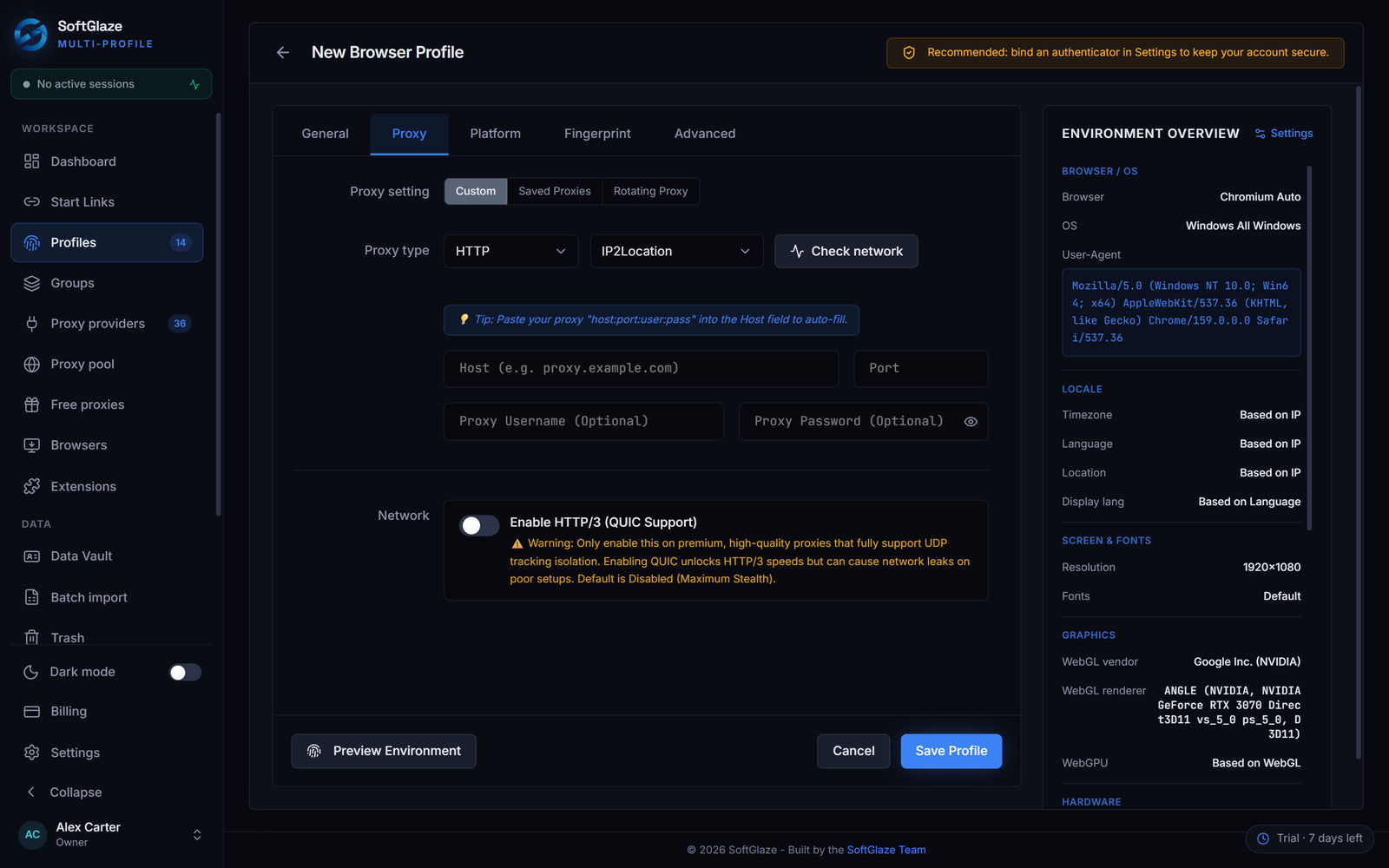
A profile's Proxy tab offers three choices: a custom proxy typed in for that profile, a saved proxy from the workspace pool, or a rotating pool. With a single proxy, the profile always uses that proxy, which is the stable option for an account.
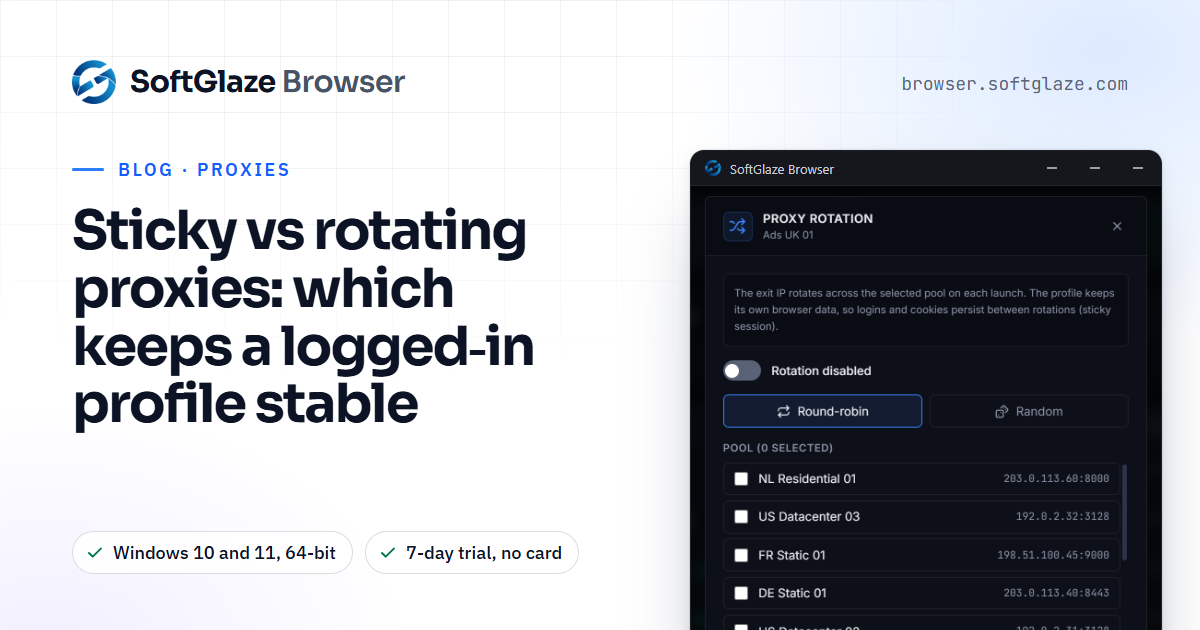
With a rotation pool, the profile can change its exit address between launches while keeping its own cookies, because those live in the profile and not in the proxy. The pool is walked in order (round-robin) or picked at random. One policy, set on the Proxy pool page, applies to every profile that has a pool:
- Rotate each launch moves to the next proxy in the pool. This is the default.
- Sticky (fixed proxy) ignores the pool; the profile keeps its own fixed proxy.
- Failover to healthy skips proxies whose last check failed, with an optional latency ceiling. If nothing qualifies, it uses the whole pool rather than block the launch.
- Fastest (latency) rotates among the fastest healthy proxies, the top 3 unless you change it.

The proxy docs describe each policy and what happens at launch. Two more tools change the address without a pool. A proxy whose provider gives you a rotation link can get a new exit IP from its own row in the pool. And for the 16 gateway-style provider connectors, the app builds the logins for you: one rotating login, or one login per sticky session, from the proxy login on your provider dashboard.
Choosing, by job
- One account, signed in daily: a single static or ISP proxy, or a long sticky session, in the account's country. Set the profile to that one proxy.
- One account, and you want a backup: a small pool of proxies in the same country with Failover to healthy, so a dead proxy is skipped at launch instead of stopping your work.
- Many profiles checking public pages: a larger pool with Rotate each launch or Fastest.
A setup that works for most teams
If you are not sure where to start, this arrangement suits most account work:
- Give each account its own profile, and each profile one proxy in the account's country. Static or ISP proxies are ideal; a long sticky session is the next best.
- Group your proxies by country, and keep two or three spare ones in each group.
- For an account you can't afford to have stuck, give its profile a small rotation pool from the same country and use Failover to healthy, so a dead proxy is skipped at launch.
- Turn on Auto-check every few minutes in the proxy pool, so failed proxies are marked before anyone launches with them.
- Run Leak Check on a profile whenever you change its proxy.
Keep each pool in one country
Geo auto-match, on by default, sets a profile's timezone, language and WebRTC address from wherever its proxy exits at each launch. That keeps every session consistent with its own address, but a pool that mixes countries means the same profile turns up in Germany on Monday and Brazil on Tuesday, with its clock changing to match. Keep each rotation pool to one country, ideally one type of proxy. Residential vs datacenter proxies covers choosing that type, and the proxy pool page shows how pools, groups and health checks fit together.
Questions people ask
Is a sticky proxy the same as a static proxy?
Not quite. A static proxy is a fixed address that stays yours. A sticky session holds an address from a shared pool for a limited time, and can change if the device behind it goes offline.
Does rotating between launches log me out?
Your cookies stay in the profile, so you stay signed in from the browser's point of view. The site may still notice the new address, which is why stable proxies are safer for accounts.
Which rotation policy is the default in SoftGlaze?
Rotate each launch, for profiles that have a rotation pool. A profile with a single proxy simply uses that proxy every time.
Can a profile change address in the middle of a session?
Not through the rotation pool, which only acts at launch. A provider's own rotating gateway login can change the address per request, so use a sticky login for accounts.
Windows 10 and 11, 64-bit. 7-day trial with every feature, no card needed. Proxies not included.