To test your browser fingerprint, open a fingerprint test page in the exact browser or profile you want to check, with its proxy switched on, and read three things in the results: whether the values contradict each other, whether your real IP address shows up anywhere, and only then how unique the browser looks. Good free test pages include the EFF's Cover Your Tracks, AmIUnique, BrowserLeaks and CreepJS.
The order matters. Most people look at the uniqueness score first, and it is the least useful number on the page.
What a fingerprint test actually reads
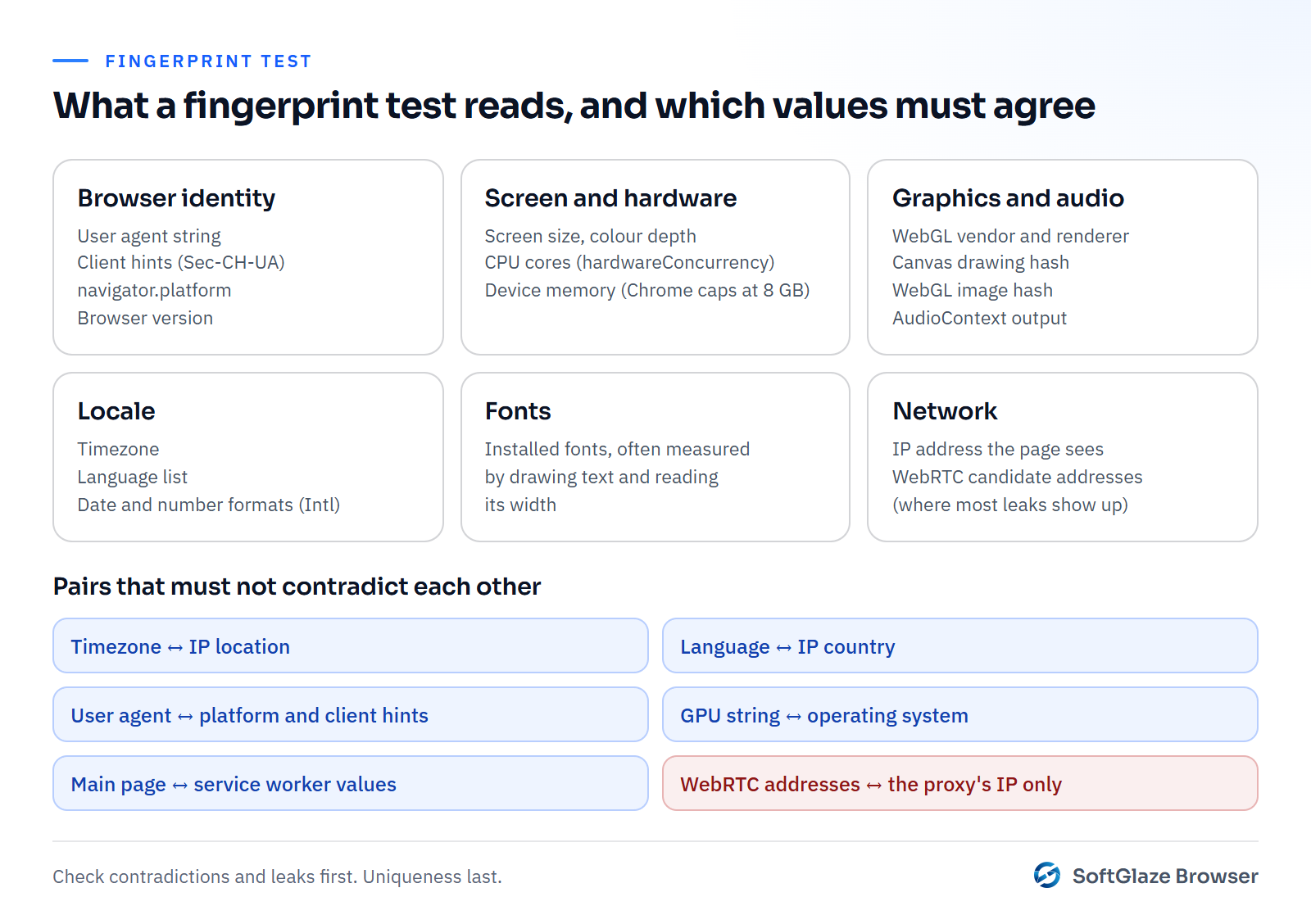
A fingerprint test is a web page that runs the same scripts a tracking or anti-fraud system would, then shows you the output. The values fall into a few groups:
- Browser identity: the user agent string, the client hints that modern Chrome sends alongside it, the platform, and the browser version.
- Screen and hardware: screen size and colour depth, the number of CPU cores, and device memory. Chrome never reports more than 8 GB of device memory, whatever the machine has.
- Graphics and audio: the GPU name reported through WebGL, and the output of drawing and audio tests. Canvas fingerprinting explains how those drawing tests work.
- Locale: timezone, language list and the formats the browser uses for dates and numbers.
- Fonts: which fonts are installed, often measured by drawing text and checking its width.
- Network: the IP address the page sees, and the addresses WebRTC can find. That second one is where most leaks happen.
Four test sites, and what each is good for
No single site gives "the" answer. They use different scripts and compare you against different collections of browsers, so the same browser can look rare on one and ordinary on another.
| Test | Run by | Best for |
|---|---|---|
| Cover Your Tracks | Electronic Frontier Foundation | A plain-English view of how trackers see your browser and how identifying each value is |
| AmIUnique | A project studying the diversity of browser fingerprints (University of Lille contact address) | Comparing your values against the fingerprints it has collected |
| BrowserLeaks | Independent site | One page per signal: WebRTC, canvas, WebGL, fonts, and more. Good for checking a single setting |
| CreepJS | Open-source project by Abraham Juliot | Looking for contradictions and signs of tampering, which its README calls "lies" |
How to read the results
1. Look for contradictions first
Detection systems care more about values that can't all be true than about rare values. The pairs worth checking:
- Timezone and IP location. A profile whose IP is in Germany but whose clock says Los Angeles is a contradiction.
- Language and IP country. Not always wrong (people travel), but worth a second look.
- User agent and platform. A Windows user agent with a Mac platform value, or a Chrome version that doesn't match the client hints.
- GPU and operating system. A Direct3D GPU string on a profile that claims to be a Mac.
- Main page and workers. Some values can be read from a service worker too. If the two disagree, the page knows something was changed.
CreepJS is the most useful of the four for this step, because looking for these inconsistencies is what it is built for.
2. Check for IP leaks
Compare the IP the test page shows with the addresses in its WebRTC section. With a proxy on, you want to see the proxy's address, or no public address at all. If your own home or office IP appears, the proxy is not covering WebRTC. WebRTC leaks covers what causes that and how to stop it.
3. Only then look at uniqueness
"Your browser is unique among the browsers we have tested" sounds alarming, but most real browsers are. For separate profiles, the useful questions are different: do two of your profiles report different values, and does each profile report the same values every time you open it? A profile whose fingerprint changes on every visit is easier to spot than one that is simply uncommon.
Testing two profiles side by side
Open the same test page in two profiles, one after the other, with each profile's own proxy on. Then compare:
- The IP address and its country.
- Timezone and language.
- User agent, screen size, CPU cores and GPU string.
- Any hash the page computes for canvas, WebGL or audio.
Values you expect to differ should differ. Values you set by hand should be exactly what you set. Then close each profile, open it again and repeat the test: the values should come back the same.
Testing inside SoftGlaze Browser
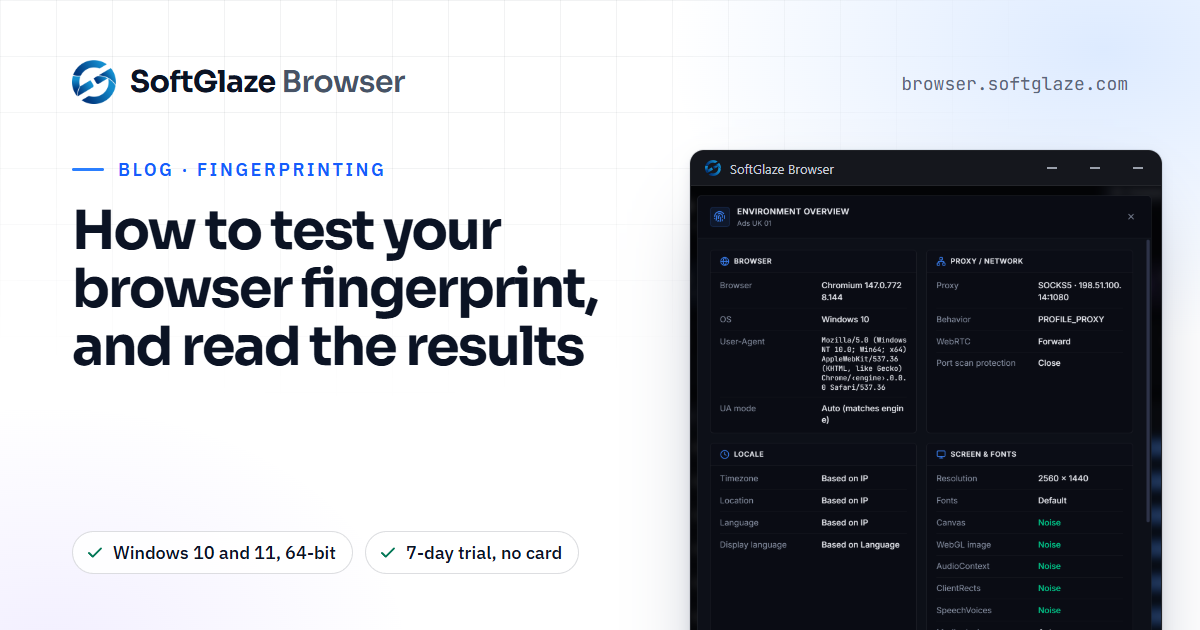
SoftGlaze has a check built in, so you can test a profile before it ever touches an account. Leak Check runs from a profile's row and has two halves, described in the profiles docs.
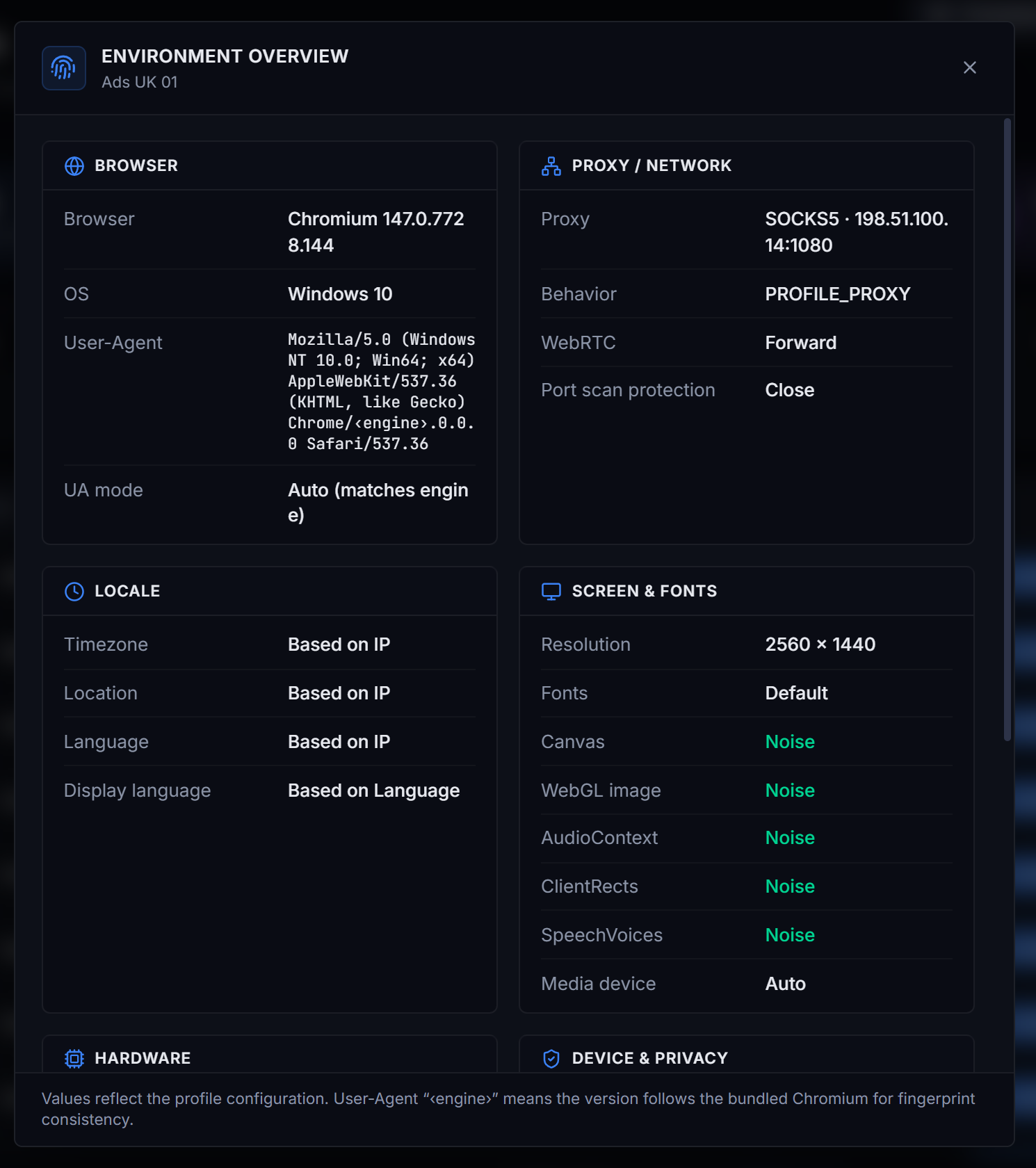
The Configuration Analysis doesn't need the profile running. It tests the profile's proxy and checks its settings for contradictions: the IP and proxy, WebRTC, timezone, language, geolocation, fingerprint noise and device coherence. Each check passes, warns or fails, and together they give a trust score out of 100 with a grade from A to F.
The Live Test (Running Browser) reads the real navigator, timezone and WebRTC values out of the open profile, so what you see is what a site sees. The profile must be running for it.
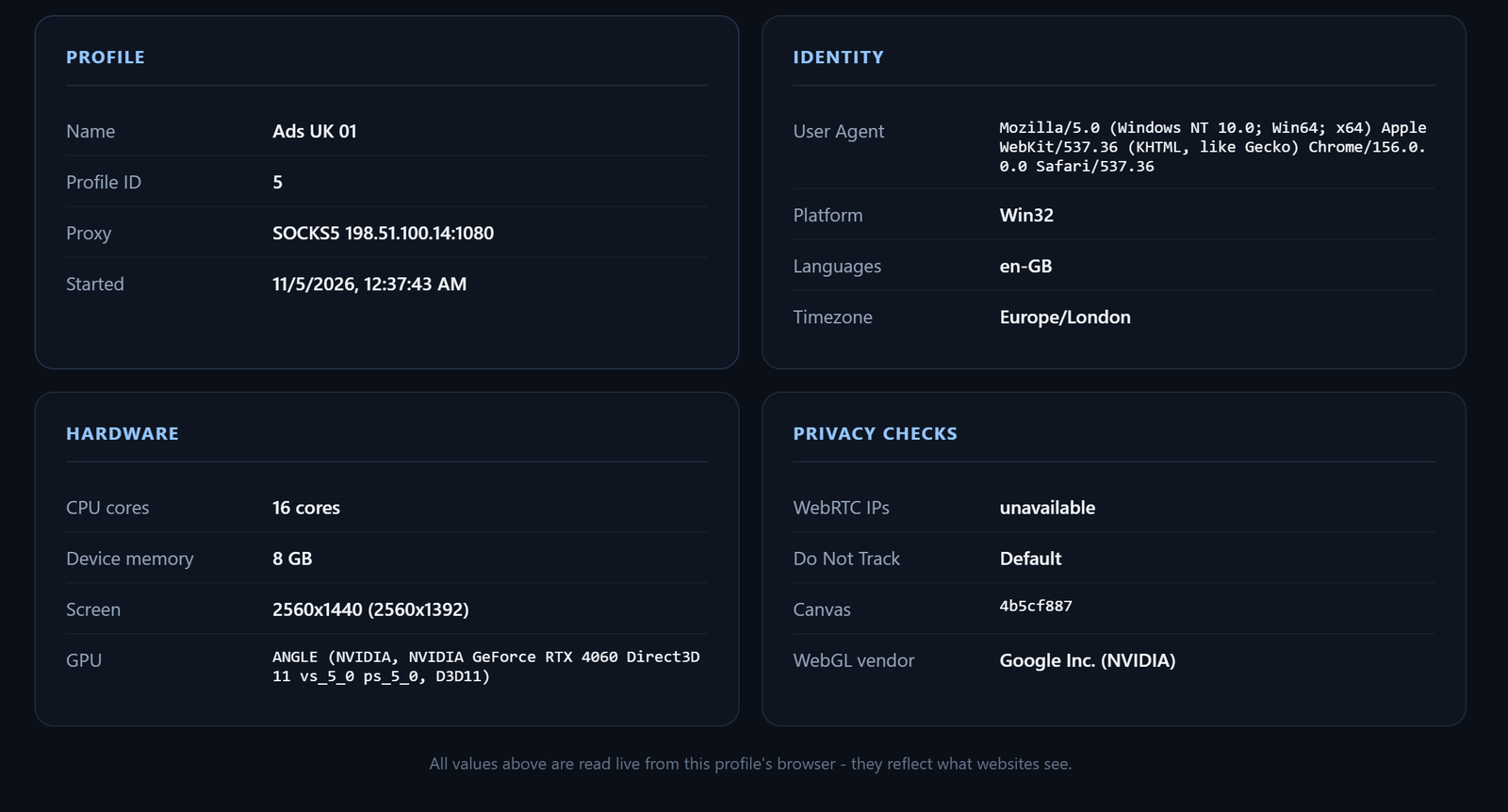
By default, every launched profile also opens on the app's own start page, which reads back the exit IP and its location, the timezone, language, user agent, screen, hardware, GPU and WebRTC result for that profile. It is a quick sanity check before you go to an outside test site.
Settings that make results worse
A few settings look like they should help and often don't. The app warns about each of them:
- Custom WebGL metadata. It changes the GPU name the page sees, but a service worker still reports the real GPU, and detectors look for exactly that mismatch. Keep it on Real.
- Claiming another operating system. Fonts, canvas rendering and the real TLS and JavaScript engine behaviour still come from your Windows machine.
- Port Scan Protection. It works by patching functions inside the page, and some sites detect the patched functions. Leave it off unless you need it.
- Timezone or language set by hand to something far from the proxy. Leave both on Based on IP if the profile has a proxy.
The fingerprint management page lists every setting in the profile editor and what each one can and can't change.
Questions people ask
Is it safe to run a fingerprint test?
The test pages read what any website you visit can already read. They don't install anything. Use well-known ones, and remember that the operator of the test site sees your IP address like any other site.
Why do two test sites give me different scores?
They run different scripts and compare you against different sets of browsers. Use them for the details, not for a single grade.
Can a profile get a perfect score everywhere?
No browser can, and no honest tool claims it. Aim for no contradictions and no IP leaks; those are the problems that actually cause trouble.
Should I test with the proxy on?
Yes. A profile's timezone, language and WebRTC result depend on its proxy, so testing without it tells you very little.
Windows 10 and 11, 64-bit. 7-day trial with every feature, no card needed.