Who wrote this
We make SoftGlaze Browser. These steps are for SoftGlaze AI, the MCP server inside it, which is a Beta from version 1.0.22 and runs on Windows only. They follow our connection guide as it stood on 9 November 2026, with version 1.0.25 of the app.
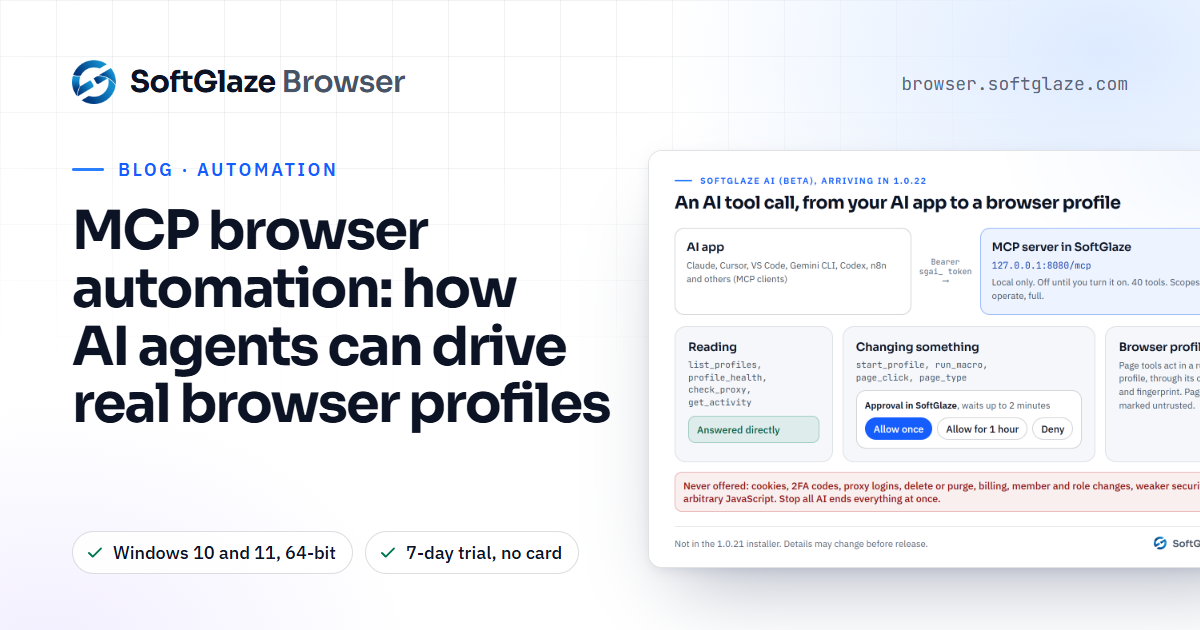
Claude Code and Cursor can use outside tools through MCP, the Model Context Protocol. SoftGlaze AI is an MCP server built into SoftGlaze Browser, so once it is connected, the AI can list your browser profiles, check their proxies, start a profile and work inside its pages, while each profile keeps its own cookies, proxy and fingerprint. This guide connects it step by step, then checks that it works.
What you need
- Windows 10 or 11, 64-bit, with SoftGlaze Browser 1.0.22 or later. If your app has no SoftGlaze AI page in the sidebar, update it from the download page.
- The Owner or an Admin of the workspace. Only they can turn the server on and create tokens.
- Claude Code or Cursor on the same computer. The server answers on 127.0.0.1 only, so the AI app must run where SoftGlaze runs.
- SoftGlaze open. The server lives inside the app; close the app and the AI app loses its connection.
- A Chromium profile if you want the AI to work inside pages. Page tools don't work in Firefox profiles.
Step 1: turn on SoftGlaze AI
- Open SoftGlaze Browser and choose SoftGlaze AI in the sidebar, under Workspace.
- Switch on AI server at the top of the page. It is off until you do.
- The status shows Running with the address, for example 127.0.0.1:8080. The port is 8080 unless the Owner changed it on the Settings tab.
Step 2: create a token
Every AI app connects with its own token, so you can see what each one does and cut one off without touching the others.
- Open the Tokens tab and press Create token.
- Name it after the app and the computer, for example "Claude Code on my PC".
- Acts as: the team member the AI works as. It gets that member's permissions and sees only the profiles that member may open.
- What it may do: start with Read only. You can make an Operate token later, when you want the AI to change things.
- Expires after: 7, 30 or 90 days. 30 is a sensible default.
- Profiles it may use: all the member's profiles, or only some groups.
- Press Create token and copy it. It starts with sgai_ and is shown only this once; SoftGlaze keeps only a hash of it.
| Scope | What the AI app can do |
|---|---|
| Read only | Look at profiles, proxies, groups, macros, activity and the workspace memory, and check a proxy or a profile's health. Change and start nothing. |
| Operate | Everything in Read only, plus create and change profiles, start and stop them, assign and rotate proxies, run macros and work inside pages. Changes wait for your approval. |
| Full | Everything in Operate, plus the Expert tool when Expert mode is on. Owner only, for apps you fully trust. |
Step 3, for Claude Code: add SoftGlaze
There are two ways. Use one.
The plugins. Run these three commands inside Claude Code:
/plugin marketplace add softglazee/softglaze-claude-plugin
/plugin install softglaze-browser@softglaze
/plugin install softglaze-browser-connector@softglaze
The first plugin adds skills, such as a daily health check. The second adds the tools; it needs Node.js 18 or newer, asks for your token and port when you install it, and keeps the token in your system's secure storage. The plugins are public at github.com/softglazee/softglaze-claude-plugin.
One command, without Node.js. In a terminal, with your token in place of the placeholder and your port if it isn't 8080:
claude mcp add --transport http softglaze http://127.0.0.1:<PORT>/mcp --header "Authorization: Bearer <YOUR_TOKEN>"This adds SoftGlaze to the current project. Add --scope user to have it in every project.
Then start Claude Code and type /mcp. SoftGlaze should show as connected.
Step 3, for Cursor: add SoftGlaze
- Open ~/.cursor/mcp.json to use SoftGlaze in every project, or .cursor/mcp.json in one project.
- Add this, with your port and token:
{
  "mcpServers": {
    "softglaze": {
      "url": "http://127.0.0.1:<PORT>/mcp",
      "headers": {
        "Authorization": "Bearer <YOUR_TOKEN>"
      }
    }
  }
}
Then, in Cursor's settings, check that SoftGlaze is listed and switched on.
To keep the token out of the file, put it in an environment variable named SOFTGLAZE_TOKEN and write "Bearer ${env:SOFTGLAZE_TOKEN}" as the header value.
Step 4: check that it works
Ask the AI: "Read the SoftGlaze workspace summary." It should call workspace_summary and tell you how many profiles, groups and proxies it can see, which plan you are on and what its token may do. Read-only tools don't ask for approval, so this works straight away.
In SoftGlaze, the AI page now lists the app under Connected apps, and the Activity tab shows the call.
Step 5: give it real work
With a Read only token, try questions like these:
- "Which proxies failed their last check, and which profiles use them?"
- "Why does the profile US-ADS-01 keep getting CAPTCHAs?" (the profile name is an example; use one of yours)
- In Claude Code, type / and pick a SoftGlaze prompt, such as the daily health check. There are 12, listed in the prompt library.
When you want the AI to change things, create an Operate token and swap it in. Then ask, for example: "Start the profile US-ADS-01 and open example.com." SoftGlaze shows a dialog that names the app, the token, the member it acts as and the profile, with three buttons:
- Allow once runs this one request.
- Allow for 1 hour also lets the same kind of request from the same token run without asking for the next hour.
- Deny refuses it.
No answer in 2 minutes counts as Deny. Runs on more than one profile and stopping all profiles ask every time. SoftGlaze decides this, whatever Claude Code's or Cursor's own approval settings say. The approvals section of the guide has the full table.
If it doesn't work
- 401: the token is missing, wrong, revoked or expired. Check that the whole token was pasted, with no space or line break. Tokens can't be shown again: create a new one.
- 403 with "This token has the read scope": the tool changes something. Use an Operate token.
- 503: SoftGlaze AI is switched off. Switch AI server on again.
- The port is in use: another program holds 8080. Close it, or let the Owner pick another port, then update the address in Claude Code or Cursor.
- The AI says it is waiting for approval: look for the dialog in SoftGlaze, or open the Approvals tab. The AI app should call the tool again after you answer; if it doesn't, ask it to.
- Page tools refuse to work: the profile has to be running and be a Chromium profile, and if you set a list of allowed sites, the site has to be on it.
More cases are in the troubleshooting section.
Keep it safe
- One token per app and per computer. Name it so you recognise it, and revoke the ones you no longer use.
- Start with Read only. Move to Operate when you want changes, and keep Full for apps you fully trust.
- Limit tokens to groups when the AI only needs some profiles.
- Never paste a token into a chat. Keep it in Cursor's environment variable or Claude Code's secure storage.
- Read before you press Allow. The dialog names the profiles; Show details lists the arguments.
- Know the off switch. Stop all AI, at the top of the SoftGlaze AI page, stops every run and profile an AI app started, disconnects every app and switches the server off.
- Know where data goes. SoftGlaze AI sends nothing to SoftGlaze, but Claude Code and Cursor send what they read, such as profile names and page text, to their own AI provider. No SoftGlaze tool returns cookies, 2FA codes or passwords.
Limits of the Beta
- Tools, prompts and setups may change before the full release.
- The AI app must run on the same Windows computer. ChatGPT on the web, Grok and n8n Cloud can't reach it yet.
- Page tools act like a person, through each profile's own proxy and fingerprint, but some sites can detect automation of any kind.
- A macro run handles up to 3 profiles at once on Pro and 10 on Enterprise and during the trial, whatever the AI asks for.
- The acceptable use policy covers everything an AI app does through SoftGlaze.
Other AI apps
The same server works with Claude Desktop (a one-file extension), VS Code with GitHub Copilot, Gemini CLI, the ChatGPT desktop app and Codex, Windsurf, Cline and self-hosted n8n. Each has its own setup in the connection guide, and the antidetect browser with MCP page explains what the server does and how it compares.
Questions people ask
Do I need to pay to try this?
No. SoftGlaze AI is in the app on the 7-day trial, which needs no card. After that, Pro is $5 a month and Enterprise $29 a month per workspace ($50 or $290 a year).
Can I use it on a Mac?
Not yet. SoftGlaze runs on 64-bit Windows 10 and 11, and the AI app has to run on the same computer.
Will Claude Code or Cursor change things without asking me?
Not with SoftGlaze's own approvals in place. Read-only tools answer straight away; anything that changes something waits for your Allow in SoftGlaze. The exceptions are ones you choose or that undo the AI's own work: a tool you allowed for 1 hour, tools you pre-approved on an automation token, and stopping a profile or run the same token started.
Can I use Playwright MCP instead?
You can hand a running Chromium profile to Playwright MCP or Chrome DevTools MCP; the guide for that explains how. Sites can notice an outside debugger more easily, so SoftGlaze's own page tools are usually the better choice.
Where is the full list of tools?
In the tool reference: all 40, with each one's scope and approval rule, and the list of what is never exposed.
The setup for every AI app, approvals, automation tokens and troubleshooting.
7-day trial, no card needed. Windows 10 and 11, 64-bit.